Customizer — Banter6
Customizer guide for Banter6, with safe WordPress configuration steps and SaeTheme recommendations.
Customizer
Customize the desktop navigation logo and the repeated Category and Information icons in the mobile menu without editing theme files.
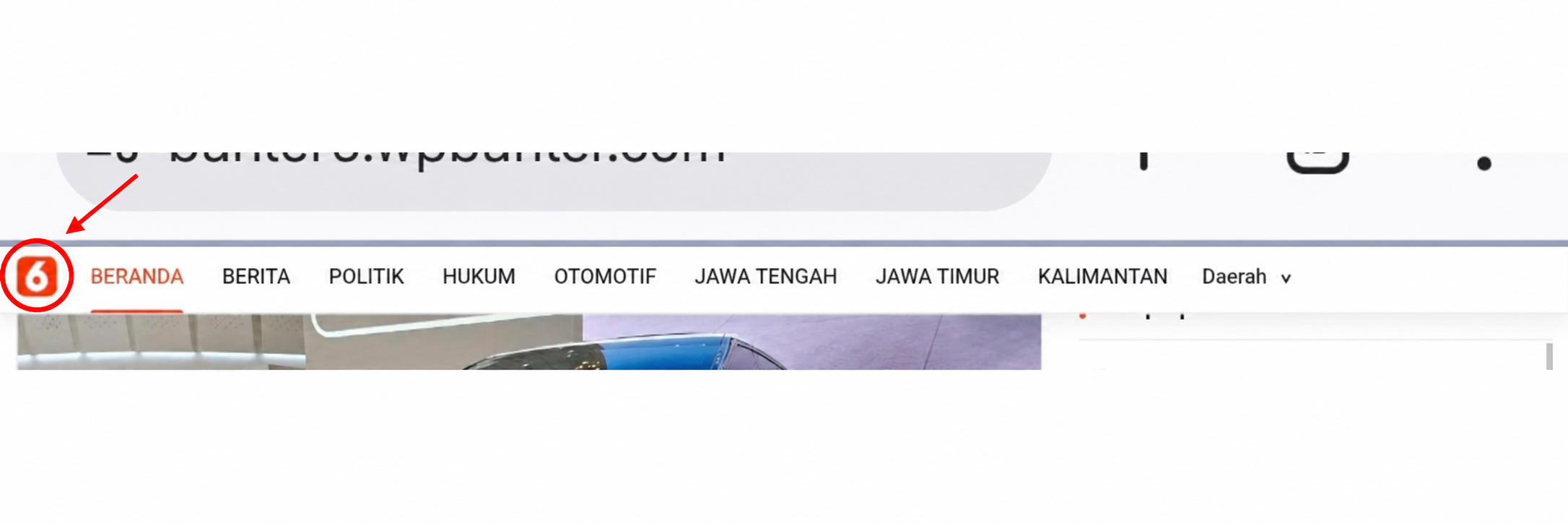
Change the left desktop menu logo
This setting controls the small logo shown to the left of Home in the desktop navigation, including the sticky navigation state.
- Open Banter6 settings
Go to Appearance → Customize → Banter6.
- Enable the logo
Turn on Show left desktop menu logo.
- Choose an image
Select Left desktop menu logo, then upload or choose an image from the Media Library.
- Adjust the width
Use Left desktop menu logo width until the image fits the navigation height.
- Publish and verify
Click Publish, then test the normal and sticky desktop navigation.
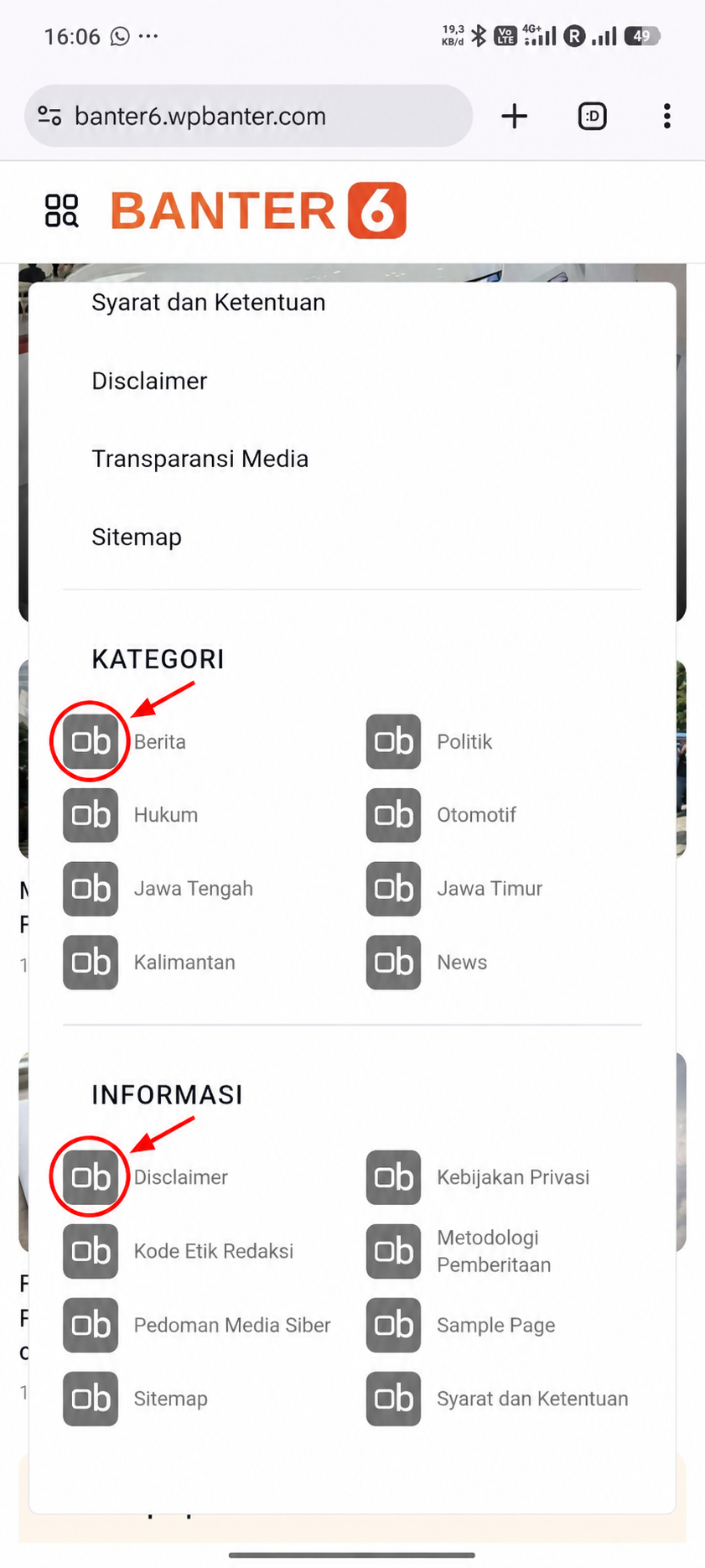
Change the mobile Category and Information icon
One selected image is used consistently for every item in the Category and Information sections of the mobile drawer.
- Open Banter6 settings
Go to Appearance → Customize → Banter6.
- Choose the icon
Under Category & Information menu icon (mobile), upload a square transparent PNG or WebP image.
- Adjust its size
Set Mobile menu icon size between 24–48 pixels; 36 pixels is a practical starting point.
- Publish and test
Click Publish, open the site on a phone, and inspect both menu sections.